Provisioning and meal links
The Provisioning tab lists the items to manage. Each item has a status and a source. You can link it to one or more meals — without ever summing quantities.
The Provisioning tab
This tab lists all items in the space. Each item has:
- Name — free text (e.g. "Mineral water", "Bread").
- Quantity — free text, entered by the crew (e.g. "6 bottles").
- Status — driven by a one-click cycle.
- Owner — the crew member who brings or manages the item.
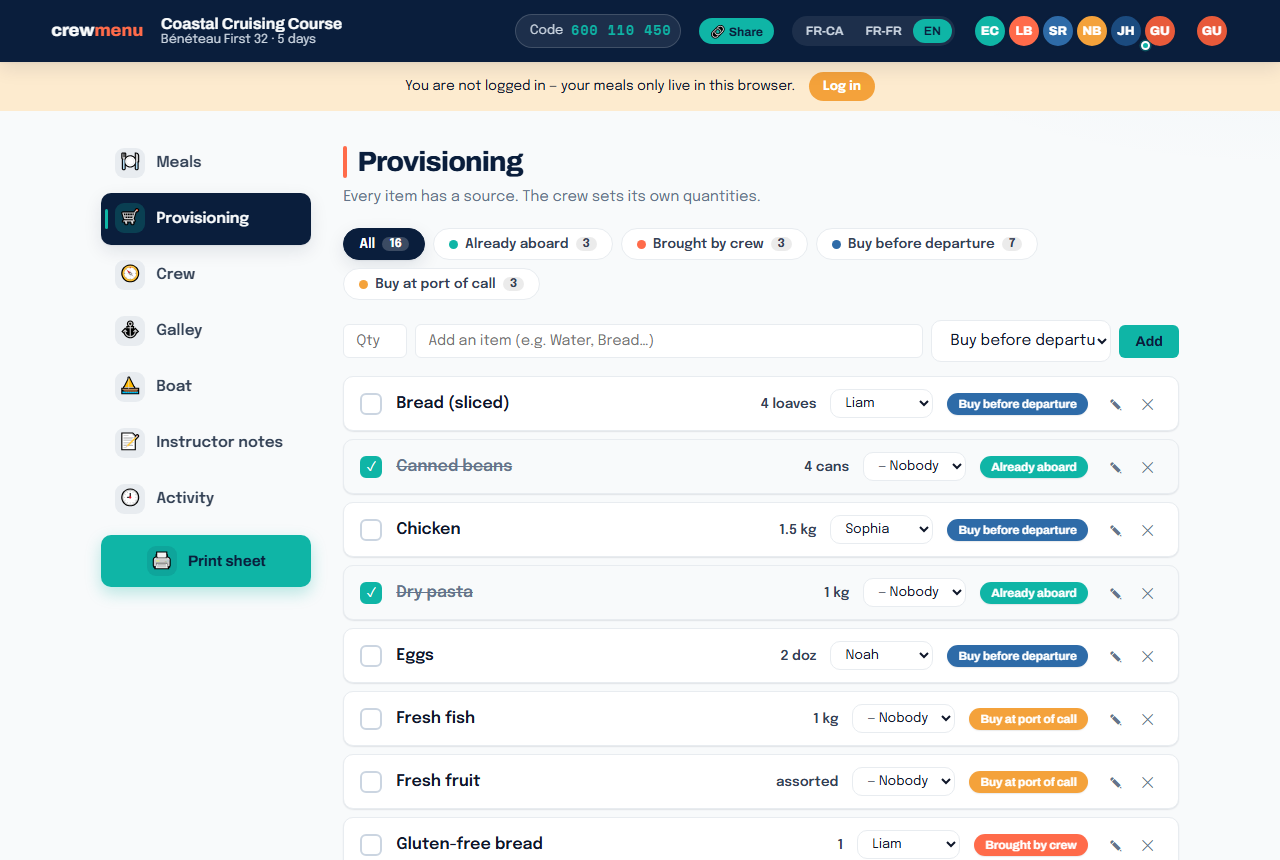
Available statuses
| Status | Meaning |
|---|---|
| Buy before departure | Not yet aboard, needs to be sourced |
| Already aboard | Available on the boat |
| Brought by crew | A member provides it |
| Buy at port of call | To be sourced during the passage |
To change the status, click the coloured dot on the item — it advances to the next status in the cycle.
Adding an item
In the form at the top of the tab, enter the name and quantity, then click Add. If an item with the same name (case-insensitive) already exists, it is reused without creating a duplicate.
Linking an item to a meal
From a meal modal (Meals tab), the Groceries for this meal sub-section lets you link existing items. Type an item name and select it from the list.
An item linked to multiple meals appears once in the provisioning list with a cross-reference (↪) indicating the meals concerned.
No quantity calculations
crewmenu never calculates quantities. If you enter "2 kg of rice" for one meal and "1 kg of rice" for another, both meals share the same item on the list — no total is computed. Your crew knows its real needs.
PDF sheet
The provisioning sheet (button Print sheet) reproduces all items grouped by status.
See also
- The meal grid — link items from the meal modal
- Boat and galley — onboard equipment (oven, fridge…)