The meal grid
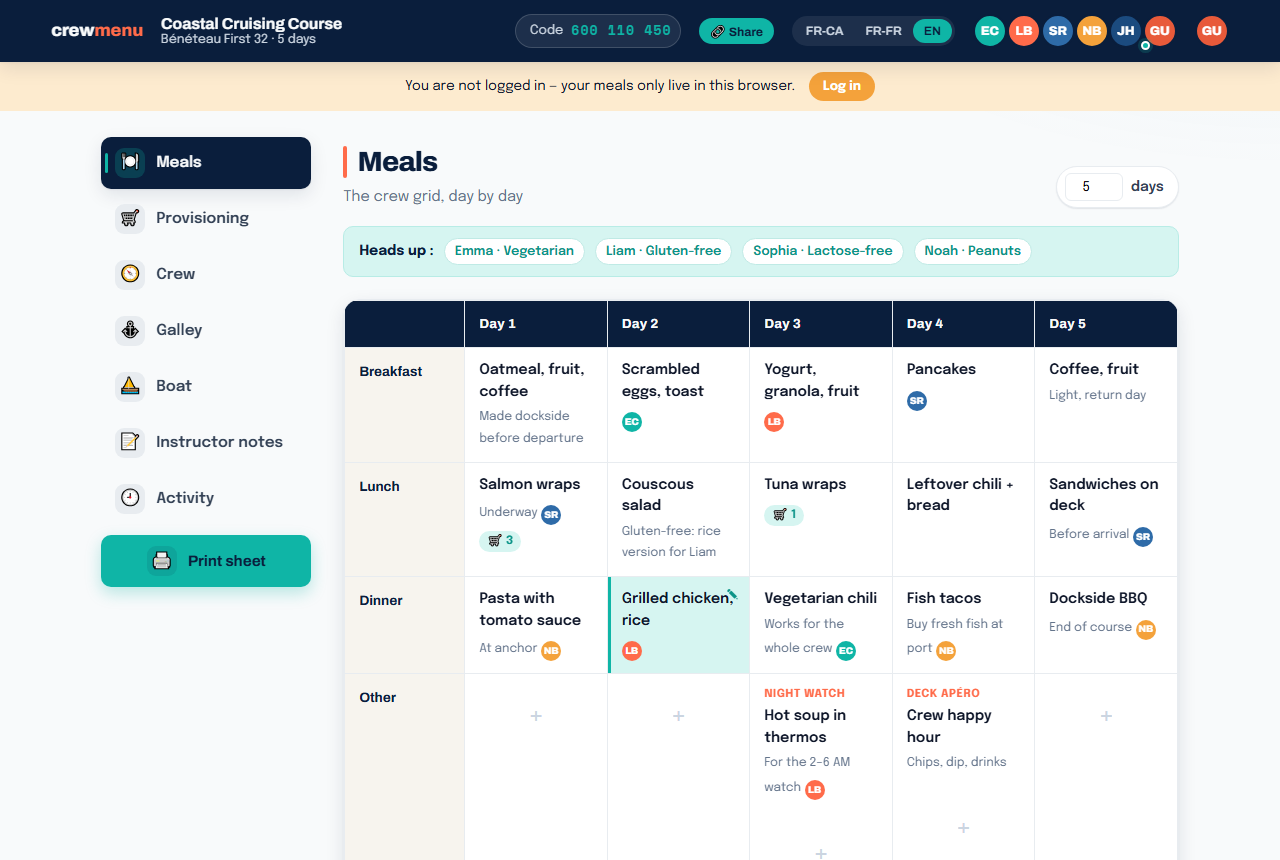
The grid shows each day as columns and meal types as rows. Add, edit, and rearrange meals directly from this view.
Grid structure
The Meals tab presents a days × types grid:
- Columns: Day 1, Day 2… up to the duration of the space (adjustable in the tab header).
- Rows: Breakfast · Lunch · Dinner · Other.
Each cell can hold one meal. The Other row accepts multiple entries per day (cocktail hour, snacks, night watches…).
Adding a meal
Click an empty cell to create a meal. The edit modal opens with:
- Label (Other row only) — a free-text name such as "Night watch" or "Deck apéro".
- Meal — a description of the dish (e.g. "Grilled chicken, rice").
- Galley hand — the crew member who cooks this meal (optional).
- Note — a remark about the meal (e.g. "gluten-free version for Alex").
Click Save to confirm.
Editing an existing meal
Click on an already-entered meal to reopen the modal and edit it.
Deleting a meal
In the edit modal, click Delete at the bottom. A confirmation appears before the meal is removed.
Rearranging by drag-and-drop
Drag a meal to another cell to move it:
- If the target cell is empty, the meal moves there.
- If the target cell already contains a standard meal (Breakfast/Lunch/Dinner), the two meals swap — nothing is overwritten.
The Other row does not keep a label when a meal is dragged there from a standard row (the label is cleared automatically).
Adjusting the voyage length
In the Meals tab header, adjust the duration (1 to 30 days). Reducing the duration hides meals on the removed days without deleting them. You can recover them by extending the duration again.
See also
- The galley hand — assign who cooks each meal
- Provisioning and links — link grocery items to a meal